



|
A Brief History of the Pi Robot Project
 The Pi Robot Project began with the goal of building a fully autonomous speech-capable mobile robot with the ability to recognize objects and faces, and to navigate around a typical house, apartment or office. Pi would also have to perform simple but useful tasks such as retrieving objects from another room or picking things up off the floor and moving them elsewhere (e.g. "please tidy the living room"). The robot would also be used to test basic ideas in perception and cognition such as object recognition, color naming, reasoning, and conversational language using semantic networks. Needless to say, this is a very long term project, and it has been somewhat humbling to discover how difficult it can be to program even the simplest tasks. Nevertheless, after five years of much trial and error, Pi's form and function are beginning to evolve into a relatively stable platform. The Pi Robot Project began with the goal of building a fully autonomous speech-capable mobile robot with the ability to recognize objects and faces, and to navigate around a typical house, apartment or office. Pi would also have to perform simple but useful tasks such as retrieving objects from another room or picking things up off the floor and moving them elsewhere (e.g. "please tidy the living room"). The robot would also be used to test basic ideas in perception and cognition such as object recognition, color naming, reasoning, and conversational language using semantic networks. Needless to say, this is a very long term project, and it has been somewhat humbling to discover how difficult it can be to program even the simplest tasks. Nevertheless, after five years of much trial and error, Pi's form and function are beginning to evolve into a relatively stable platform.
Pi's recent conversion to the Robot Operating System, or ROS, from Willow Garage, has accelerated his development by an order of magnitude. ROS has greatly simplified the application of some of the more complex algorithms in robotics, such as localization and navigation (SLAM), forward and inverse kinematics for multi-jointed arms, and 3-dimensional object recognition. With these problems essentially solved by existing packages, Pi can now focus on putting them together in novel ways that will enable him to finally get out and play just like the robots on TV.
In this contest submission, I will start with a brief history of the Pi Robot project, including hardware and software used then and now and why I switch from one to another. Then I will introduce ROS with some highlight videos that demonstrate some of the power of using the framework. The final section consists of a tutorial on how to use ROS to do head tracking of visual objects. While not as glamorous as SLAM, head tracking provides a nice way to introduce many of the key concepts in ROS without getting lost in the details.
The Early Days
Life as a Heater
Pi Robot began life 5 years ago as a BrainStem-controlled heater. The 7" wheels were taken from one of those "ab rollers" you see on TV and wrapped with weather stripping for tires. Vision was provided by a CMUcam that had a nice plugin connection to the Acroname BrainStem. Programming was done in C and downloaded to the BrainStem as compiled TEA programs. Text-to-Speech was done with the Devantech SP03 speech board. At this point, Pi's behaviors were somewhat limited: he could move around randomly while avoiding obstacles using a panning IR sensor on the base, and he could track simple colored objects using his CMUcam and a pair of Hitec servos for pan and tilt control. But it was soon clear that I would need a bigger CPU and a different programming strategy if Pi was to do more than warm the living room.
 Pi Version 2.0 Pi Version 2.0
To construct a roomier and more configurable base and chassis, I was happy to discover the Vex Robotics aluminum framing kit. This permitted the mounting of a Via mini-ITX motherboard, a flat lithium-ion battery, and a number of controller boards, including the Lynxmotion SS32 servo controller, and the Phidgets 8-8-8 sensor board. Pi also sprouted a pair of arms, each with just 2 degrees of freedom at the shoulders. Then he started experimenting with omnidirectional vision using an 8" truck mirror and a Logitech webcam pointing up at it from below.
Programming was now done in C# under Windows XP. This opened up a vast world of pre-existing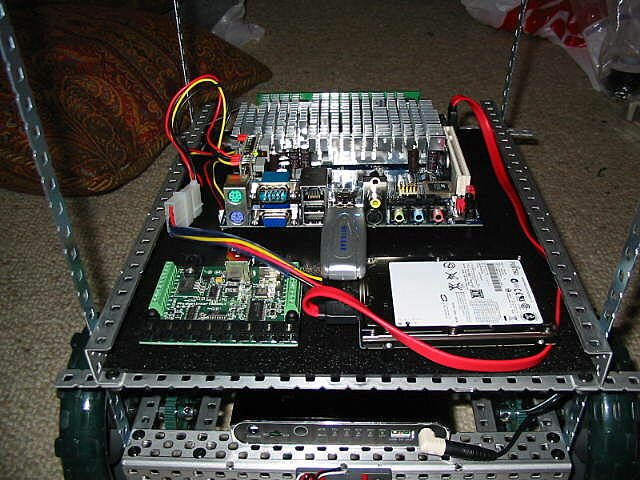 software and software and libraries for vision processing, neural networks, and speech recognition. The most useful discovery was RoboRealm, an amazing piece of vision and robot control software that can extract almost any visual feature you can name from a live video stream, show you the results in real time with the click of a mouse, and control nearly any kind of robot you may own. The result was that Pi could now do smooth head tracking of visual targets and even reach for moving objects. libraries for vision processing, neural networks, and speech recognition. The most useful discovery was RoboRealm, an amazing piece of vision and robot control software that can extract almost any visual feature you can name from a live video stream, show you the results in real time with the click of a mouse, and control nearly any kind of robot you may own. The result was that Pi could now do smooth head tracking of visual targets and even reach for moving objects.

Pi Robot Version 3.0
 Pi's hardware still needed some adjustments. First, he needed more functional arms. This required an upgrade from Hitec "hobby" servos to the Dynamixel AX-12+ servos made by Robotis. The key feature of the AX-12's over the hobby servos is feedback: you can query the servos at any time and get back current position, speed, load and even temperature and voltage. You can also set things like the torque limit so that a given servo can be made to push only so hard and no harder. These features are very nice to have when using ROS since one of the framework's key data types is JointState which stores the position, velocity and effort (torque) of a given actuator. The AX-12's also have a wider range of motion than regular servos: 300 degrees versus a typical 180, and they can be set to continuous rotation mode on the fly. Pi's hardware still needed some adjustments. First, he needed more functional arms. This required an upgrade from Hitec "hobby" servos to the Dynamixel AX-12+ servos made by Robotis. The key feature of the AX-12's over the hobby servos is feedback: you can query the servos at any time and get back current position, speed, load and even temperature and voltage. You can also set things like the torque limit so that a given servo can be made to push only so hard and no harder. These features are very nice to have when using ROS since one of the framework's key data types is JointState which stores the position, velocity and effort (torque) of a given actuator. The AX-12's also have a wider range of motion than regular servos: 300 degrees versus a typical 180, and they can be set to continuous rotation mode on the fly.
Pi's arms now have 5 joints each: three at the shoulder for pan, lift and roll, one at the elbow and one at the wrist. At the moment, he still does not have grippers--just two flat Bioloid hand pieces. The AX-12 servos require a controller and I alternate between two of them: a USB2Dynamixel and the ArbotiX from Vanadium Labs. To power the servos when using the USB2Dynamixels, Pi uses a SMPS2Dynamixel Adapter with a connection to two 8.4V NiMH battery packs.
Pi also has a new omnidirectional vision system integrated into his torso. You can see it in the picture above just underneath his neck servo. I had a hyperbolic mirror custom made by a company called 3DProto that seems to no longer exist. The mirror is mounted in clear Plexiglas tube with a Philips SPC 1300 USB camera pointed up at it. One small issue is that parts of Pi's shoulders can appear in the image.
For controlling the drive motors and taking readings from sensors, Pi uses the Serializer microcontroller from the Robotics Connection. The Serializer controls two 7.2V Gearhead drive motors that come with integrated quadrature encoders and a wiring harness especially designed for the Serializer. To make the Serializer work with Python and ROS, I released an open source Python Serializer driver.
Pi also has a new onboard PC. Inside the black box on Pi's base is a Zotac dual-core Intel Atom 1.6Ghz mini-ITX with 4 Gb RAM and a 40Gb hard drive running Ubuntu Linux 10.04. The Zotac board is powered by an M3-ATX PicoPSU power supply which has the nice feature of being able to run the board on anywhere from 6-24V.
Sitting at the front of the base is a new Hokuyo URG-04LX-UG01 Scanning Laser Rangefinder. We'll have more to say about this device in the SLAM demonstration below.
For a complete list of the hardware currently being used on Pi Robot, check out this hardware page.
With all this new hardware, Pi better start doing something useful, like clean up his room or find the TV remote. But these tasks present a rather daunting set of programming challenges: SLAM (simultaneous localization and mapping), multi-jointed arm control (inverse kinematics), and 3-dimensional object recognition. All of these tasks require a lot of mathematics and many lines of code. Fortunately, these same problems have already been solved many times over by some of the best roboticists in the world. So how can Pi tap into this existing programming expertise without having to reinvent the wheel?
Pi Robot Meets ROSJust in the nick of time, California startup company Willow Garage was created with a simple but powerful vision: to develop a unified robot programming framework (called ROS or Robot Operating System) that is free and open source yet allows anyone to access some of the most sophisticated robotics software tools available. At the same time, encourage anyone to contribute back to the code repository so that individual efforts can be shared and added to the framework. In this way, even a hobby roboticist working out of his or her living room can access state-of-the-art algorithms for doing SLAM, 3D object recognition, inverse kinematics for arms with any number of degrees of freedom, and much more. At the same time, anyone who writes a useful piece of robot software can link it into the ROS repository and become a part of something much bigger than any one individual project.

Is ROS for Me?
ROS has made its biggest impact in university robotics labs. For this reason, the framework might appear beyond the reach of the typical hobby roboticist. To be sure, the ROS learning curve is a little steep and a complete beginner might find it somewhat intimidating. For one thing, the full ROS framework only runs under Linux at the moment, though parts of it can be made to work under Windows or other OSes.
So you'll need a Linux installation (preferably Ubuntu, and it's free) or a Linux alongside your existing OS. (Ubuntu can even be installed under Windows as just another application without the need for repartitioning.) Once you have Linux up and running, you can turn to the ROS Wiki for installation instructions and a set of excellent beginner tutorials for both Python and C++. It is very important to actually work through the examples on your own computer, not just read through the text. With practise, comes familiarity and then if you're like me, ROS will really start to grow on you.
ROS can now be used with many hobby-level robots and robot controllers including the Lego NXT, Rovio, iCreate, ArbotiX, Serializer, Dynamixels, Phidgets and more. Even though you can program these robots many other ways, if you are interested in something as complex as SLAM, you might well take a look at ROS. In the end, the time put into learning ROS amounts to a tiny fraction of what it would take to develop all the code from scratch. For example, suppose you want to program your robot to take an object from your location in the dining room to somebody else in the bedroom, all while avoiding obstacles. You can certainly solve this problem yourself using visual landmarks or some kind of beacon system. But whole books have been written on localization and navigation by some of the best roboticists in the world, so why not capitalize on their efforts? ROS allows you to do precisely this by plugging your robot directly into the pre-existing navigation stack, a set of routines designed to map sensor data and odometery information from your robot into motion commands and automatic localization. All you need to provide are the dimensions of your robot plus the sensor and encoder data and away you go. The hundreds or thousands of hours you just saved by not reinventing the wheel can now be spent on something else such as having your robot tidy your room or fold the laundry.
ROS HighlightsBefore plunging into a ROS programming example, let's take a look at a few ROS hightlights; namely SLAM, robot arm control, and 3D object perception. ROS includes a visualization tool called RViz which is the window you see in the picture above and the video captures below. RViz not only shows you a grid or map of your environment, but can also display an accurate 3-dimensional model of your robot if you take the time to enter its dimensions in an XML file called the URDF model (Unified Robot Description Format). Once your URDF file is created, it can be brought up in RViz which then allows you to pan/tilt and zoom around your virtual robot as the following short video demonstrates:
 RViz is typically used to display sensor readings and the layout of obstacles such as walls and other objects. In particular, it is good at displaying the data returned from laser range finders (also called LIDAR) and stereo vision (point clouds). There is even a new kind of low cost vision sensor, the Microsoft Kinect, that can produce a 3D point cloud using Both of these data types consist of points located at various distances from the robot. A laser scanner returns an array of distance measurements lying in a single plane and typically sweeps through an arc in front of and to the sides of the robot. A stereo camera returns a set of distances (disparity measures) across the planar field of view of the two cameras. In any event, these distance readings can be visualized in RViz as a set of points as illustrated by the orange spheres in the images on the right. In the first image, the readings are all equidistant from the scanner as though there were a long sheet of cardboard bent in an arc in front of the robot. In the second image, Pi is standing in front of a hallway so that the distance readings recede as the scanner probes through the opening. Both of these images where created using an inexpensive substitute for a laser scanner that anyone can make and is described in greater detail below. RViz is typically used to display sensor readings and the layout of obstacles such as walls and other objects. In particular, it is good at displaying the data returned from laser range finders (also called LIDAR) and stereo vision (point clouds). There is even a new kind of low cost vision sensor, the Microsoft Kinect, that can produce a 3D point cloud using Both of these data types consist of points located at various distances from the robot. A laser scanner returns an array of distance measurements lying in a single plane and typically sweeps through an arc in front of and to the sides of the robot. A stereo camera returns a set of distances (disparity measures) across the planar field of view of the two cameras. In any event, these distance readings can be visualized in RViz as a set of points as illustrated by the orange spheres in the images on the right. In the first image, the readings are all equidistant from the scanner as though there were a long sheet of cardboard bent in an arc in front of the robot. In the second image, Pi is standing in front of a hallway so that the distance readings recede as the scanner probes through the opening. Both of these images where created using an inexpensive substitute for a laser scanner that anyone can make and is described in greater detail below.

Navigation and Obstacle Avoidance
The ROS navigation system enables a robot to move from point A to B without running into things. To do true SLAM (simultaneous localization and mapping), your robot will generally need a laser range finder or the Kinect IR-depth camera from Microsoft. If you have a good stereo camera you could also try visual SLAM or VSLAM. However, basic obstacle avoidance and navigation by dead reckoning can be accomplished with an inexpensive alternative dubbed the "Poor Man's Lidar" or PML, a concept originated by Bob Mottram and perfected by Mike Ferguson using the ArbotiX controller.
A PML consists of a low cost IR sensor mounted on a panning servo that continually sweeps the sensor through an arc in front of the robot. The servo-plus-sensor can record 30 readings per 180-degree sweep which takes 1 second in each direction. As a result, there is a bit of a lag between the motion of the robot and the updated range readings indicated by the orange balls in the images above and the videos below. By comparison, the lowest cost laser range finder (about $1300) takes over 600 distance readings per 240-degree sweep and covers the entire arc 10 times per second (1/10th of a second per sweep).
The photos below show our PML setup:
  
Toward the bottom of the first photo you can see the IR sensor (Sharp model GP2Y0A02YK) attached to a Robotis Dynamixel AX-12+ servo. Notice how the IR sensor is mounted "vertically" which is a better orientation when taking sweeping horizontal measurements. The second photo better illustrates how the IR sensor sweeps to one side, and the third photo shows the ArbotiX microcontroller attached to the back of Pi's torso. The IR sensor plugs into one of the ArbotiX analog sensor ports while the AX-12 servo plugs into the Dynamixel bus. The ArbotiX firmware includes direct support for a PML sensor of this type and Vanadium labs has developed an open source ROS node that allows the PML data to appear as a "laser scan" within the ROS framework and RViz. The image below shows the PML data from a single scan while Pi stands in front of a box which itself is in front of a wall.

Our PML has a rather limited range compared to a laser scanner. The Sharp GP2Y0A02YK can measure distances between 20 cm (0.2 meters) and 1.5 meters. A typical laser scanner has a range between 2 cm (0.02 meters) to 5.5 meters. Longer range IR sensors are available such as the GP2Y0A700K0F which measures between 1.0 and 5.5 meters but this means the robot would be blind to objects within 1 meter. We could also use a pair of short and long range sensors, but for this article we'll use just a single sensor.
The first video shows Pi moving around a room while avoiding obstacles using a PML. The grid squares in RViz are 0.25 meters on a side (about 10 inches) and you can see that the user clicks on a location with the mouse to tell Pi where to go next. (The green arrow indicates the orientation we want the robot to have once it gets to the target location.) ROS then figures out the best path to follow to get there (indicated by the faint green line) and incorporates the data points from the PML scanner to avoid obstacles along the way. When an obstacle is detected, a red square is placed on the map to indicate that the cell is occupied. The grey squares add a little insurance based on the dimensions of Pi's base just to make sure we don't get caught on an edge. Be sure to view the video in full screen mode by clicking on the little box with 4 arrows at the bottom right corner of the video.
- This video demonstrates the use of the ROS navigation stack with a "Poor Man's Lidar" consisting of a low cost Sharp IR sensor (model GP2Y0A02YK) with a panning servo (Dynamixel AX-12+) and the ArbotiX microcontroller by Vanadium Labs. Odometry data is obtained from a Serializer microcontroller made by the RoboticsConnection and connected to a pair of 7.2V gearhead drive motors equipped with integrated encoders (624 counts per revolution). Communication to the controlling PC is by way of XBee for the ArbotiX and Bluetooth for the Serializer.
Robot Cartography: ROS + SLAM
 In a much earlier article we looked at how Pi Robot might use omnidirectional video images and an artificial neural network to figure out which room he was in. The idea was that different places have different visual appearances and we could use these differences to determine where we were at any given moment. We may come back to that approach at a later time, but there is another method, called SLAM, that has a long history in the field of robotics and is now within reach of even hobby roboticists thanks to ROS. In a much earlier article we looked at how Pi Robot might use omnidirectional video images and an artificial neural network to figure out which room he was in. The idea was that different places have different visual appearances and we could use these differences to determine where we were at any given moment. We may come back to that approach at a later time, but there is another method, called SLAM, that has a long history in the field of robotics and is now within reach of even hobby roboticists thanks to ROS.
SLAM stands for Simultaneous Localization and Mapping and one way to understand it is to imagine yourself entering an unfamiliar building for the first time. When you walk in the front door, your eyes immediately begin to gaze about and you quickly assess the layout of the room or rooms nearest to your current location. At this point, you know that you are located at the front entrance and you have an initial sense of the layout--or map--of a small part of the building. As you cross the floor ahead, your eyes and head continue to scan from side to side and you notice doorways and other entrances leading to additional rooms and perhaps even stairways or elevators leading up or down to additional floors.
As you move about the building, you don't completely forget where you have already been. Indeed, at any moment you have a pretty good idea where you are within the current map that you have so far constructed in your head, and unless you have a really bad sense of direction, you could probably turn around and get back out of the building without too much trouble. Finding your way around the building is a good example of simultaneously constructing a map and localizing yourself within that map.
Roboticists have developed a similar process for mobile robots but instead of using visual landmarks, most algorithms use an occupancy map. An occupancy map consists of a grid laid over some region around the robot with each cell in the grid marked as "occupied", "free" or "unknown". A robot can use a number of methods for determining the occupancy of a cell in the map, but the most common method is to employ a scanning laser range finder. If the sweeping beam of the laser detects an object at a certain distance and direction, then we mark the cell at that location as occupied. Otherwise, the cell is considered free, at least for now. If the laser scanner has not yet swept past a cell within its range, that location is marked unknown.
 In the previous section, we saw Pi Robot can use the ROS navigation stack and a simple scanning IR sensor to avoid obstacles while moving about a cluttered room. However, the limited range of the IR sensor and the small number of measurements per sweep is generally insufficient for building a stable occupancy map. So to do SLAM, we will need a laser range finder. Thanks to a generous contribution from an anonymous donor, Pi is now equipped with a Hokuyo laser scanner (model URG-04LX-UG01) as shown in the picture on the right. Note that the laser scanner has taken the place of our earlier panning IR sensor toward the front of Pi's chassis. How does it work and how is it different from our earlier setup? In the previous section, we saw Pi Robot can use the ROS navigation stack and a simple scanning IR sensor to avoid obstacles while moving about a cluttered room. However, the limited range of the IR sensor and the small number of measurements per sweep is generally insufficient for building a stable occupancy map. So to do SLAM, we will need a laser range finder. Thanks to a generous contribution from an anonymous donor, Pi is now equipped with a Hokuyo laser scanner (model URG-04LX-UG01) as shown in the picture on the right. Note that the laser scanner has taken the place of our earlier panning IR sensor toward the front of Pi's chassis. How does it work and how is it different from our earlier setup?
A scanning laser range finder sends out pulses of low-power infrared laser light (Class 1 or "eye safe") and measures the time it takes for the pulses to reflect from objects and return to the scanner. (Each scan typically covers an arc set between 180 and 240 degrees.) The Hokuyo URG model used here can emit 600 pulses per scan and it can perform 10 scans per second. That's 6000 data points per second compared to the 30 we obtained using our IR scanner. This means that not only do we obtain much finer angular resolution, but we can now detect changes in the object layout much faster thereby allowing our robot to move more quickly without running into things. The laser scanner is also remarkably precise, returning distance data with an angular resolution of 0.36 degrees and a range from about 2 cm to 5.6 meters with 3% accuracy.
The two images on the right and below compare an earlier scan using our IR sensor with a new scan of the same scene using the laser scanner.  As you can see, the laser scanner provides a much denser set of distance measurements and reveals a sharper image of the waste basket in front of the wall, the wall itself, the corner of the desk on the right, and the door on the left opening inward. This high quality distance data can be used in ROS to do SLAM. Intuitively, it is easy to imagine that if you know your precise distance from a number of fixed points in a given room, then you can essentially triangulate your position in the room using basic trigonometry. Now imagine that you have 6000 such measurements per second measured across a 180 degree arc in front of you. Such an abundance of data enables us to use some powerful statistical tools to build a map of the space surrounding the robot. As the robot moves, its wheel encoders report back position data while the laser scanner continues to return distance measurements. Combining the two data streams, we can not only extend and refine the map but also localize the robot within the map. This is what we mean by simultaneous localization and mapping. As you can see, the laser scanner provides a much denser set of distance measurements and reveals a sharper image of the waste basket in front of the wall, the wall itself, the corner of the desk on the right, and the door on the left opening inward. This high quality distance data can be used in ROS to do SLAM. Intuitively, it is easy to imagine that if you know your precise distance from a number of fixed points in a given room, then you can essentially triangulate your position in the room using basic trigonometry. Now imagine that you have 6000 such measurements per second measured across a 180 degree arc in front of you. Such an abundance of data enables us to use some powerful statistical tools to build a map of the space surrounding the robot. As the robot moves, its wheel encoders report back position data while the laser scanner continues to return distance measurements. Combining the two data streams, we can not only extend and refine the map but also localize the robot within the map. This is what we mean by simultaneous localization and mapping.
In this article, we won't go into the mathematics behind SLAM (see references below). And one of the strengths of using ROS with your robot is that you don't have to. Instead, you can set your robot to the task of mapping out your house or apartment while you get started on Thanksgiving dinner.
The videos below were captured from the ROS RViz visualization utilitiy while Pi Robot mapped out several rooms in a typical apartment. The first video is run at 6x speed and takes only 50 seconds so you can see the process more easily. The second video is run in real time and includes a number of captions that explain the process along the way.
ROS by Example: Visual Object Tracking
It seems like an awfully long time ago that we first saw Pi Robot tracking a colored object. Back then we were using Windows, RoboRealm, C# and Visual Studio. Now that we have made the switch to ROS, we are using Linux, OpenCV, Python and Eclipse! After all these changes, can we get Pi back to where he was in 2008?
Object tracking is one of the most basic yet fundamental behaviors in both robots and animals. It is the primary means by which we pay attention to what is important or interesting in the visual world. It is also fairly easy to program for almost any robot so it makes a good first example of how to work with ROS. Later on we will get back to SLAM and navigation, but setting up the ROS navigation stack is fairly involved and it is will be much easier after solving a simpler problem first.
In this article we will develop a complete head tracking solution including all the code that you can run on your own robot using ROS. Getting ROS itself up and running is up to you but here is a quick checklist of pre-requisites before you can run the code we will create later on:
- Install Ubuntu Linux (I am using version 10.04 on a machine that dual boots with Windows). If your robot does not have its own onboard computer, you can still run the code on your main computer and connect your robot's video camera and servo controller appropriately (usually via USB ports).
- Install the ROS C Turtle release on your Ubuntu machine.
- If you are not already familiar with the ROS basics, work through the Beginner Tutorials. It is important to actually try the sample code on your own machine rather than just reading through the text. In fact, I ran through all the tutorials twice since a few concepts were a little shaky after a single pass.
What follows assumes that that reader has at least this background. However, we start with a brief recap of the key ROS concepts before diving into the code.
ROS Recap
The core entity in ROS is called a node. A node is generally a small program written in Python or C++ that executes some relatively simple task or process. Nodes can be started and stopped independently of one another and they communicate by passing messages. A node can publish messages on certain topics or provide services to other nodes.
For example, a publisher node might report data from sensors attached to your robot's microcontroller. A message on the /head_sonar topic with a value of 0.5 would mean that the sensor is currently detecting an object 0.5 meters away. (Note that ROS uses meters for distance and radians for angular measurements.) Any node that wants to know the reading from this sensor need only subscribe to the /head_sonar topic. To make use of these values, the subscriber node defines a callback function that gets executed whenever the message on the subscribed topic is updated. How often this happens depends on the rate at which the publisher node updates its message(s).
A node can also define one or more services that produce an action or send back a reply when sent a request from another node. A good example is a service that talks to a servo controller. In this case, a service request would consist of a message specifying the servo id as well as its goal position, velocity and/or effort (torque). The reply message could be null or it could simply acknowledge receipt of the message. The controller would then move the servo in the desired manner.
More complex nodes will subscribe to a number of topics and services, combine the results in a useful way, and perhaps publish messages or provide services of their own. For example, the head tracking node we will develop below subscribes to camera messages on a set of video topics and publishes movement commands on another topic that are then read by a servo controller node to move the head's pan and tilt servos.
Vision with OpenCVWhen Pi Robot was using MS Windows, we relied on the most excellent RoboRealm software for vision. But RoboRealm does not run under Linux so we need something else to process video. Fortunately, the open source vision package called OpenCV has been around for a long time (started in 1999 by Intel) and includes many advanced computer vision algorithms as well as machine learning tools. The downside is that OpenCV is about ten times harder to use than RoboRealm. For one thing, there is no convenient GUI front end to all of the filters like RoboRealm has so you have to get your fingers into some code pretty much right away. Fortunately, there is now a Python interface to OpenCV that is somewhat easier to get started with than the original C++ library. Furthermore, OpenCV is now under the auspices of Willow Garage so it plays very nicely with ROS. Having said all this, if you are a die-hard RoboRealm fan and you don't mind running two machines, one with Windows and one with Linux, then you can do your vision processing on the Windows computer with RoboRealm and serve up the results over RoboRealm's API to the Linux machine. You could then write a small ROS node to connect to the RoboRealm data and republish it as a ROS topic.
Servo ControlBefore we can move Pi Robot's head to follow a visual target, we need a way to control his camera's pan and tilt servos. Since Pi uses the Dynamixel AX-12+ servos, we need a servo controller that works with ROS as well as the Dynamixels. We have a few choices here: (1) the ArbotiX controller from Vanadium labs using their open source Python driver and ROS node; (2) the USB2Dynamixel controller using the Robotis Package from the Healthcare Robotics Lab (HRL) at Georgia Tech; or (3) the AX-12 Controller package from the Arizona Robotics Research Group (ARRG) which also uses the USB2Dynamixel controller. Since Pi Robot has experimented with both the ArbotiX controller and the USB2Dynamixel, we will provide instructions for using either. For the USB2Dynamixel, we will use the HRL package since it is a little easier to set up than the ARRG package. Note that you can also use the Vanadium Labs ROS package with a USB2Dynamixel by setting the use_sync parameter to False. (We'll repeat this fact later when we set up the driver.)
If you are using hobby servos (e.g. Hitec) rather than Dynamixels, check to see if there is a ROS package for your servo controller. For example, if you are using the Lynxmotion SSC-32 servo controller, you can find a ROS package here.
Setting Up the ROS NodesROS encourages a "divide and conquer" strategy by wrapping each task into a separate node rather than building one large program that can be hard to understand or debug. This also means that our head tracking solution can be made to work on different hardware by changing only some of the nodes while leaving others untouched. Furthermore, since the nodes run independently of each other, they can be reused in other tasks that don't involve head tracking.
For Pi Robot to track a moving visual target, we will need four nodes performing the following functions:
- The camera node: obtains a video stream from the camera. This is our low level driver to the camera.
- The visual perception node: extracts a set of pixels defining the object we want to track and publishes the coordinates of this region of interest (ROI) on the topic /roi.
- The head tracking node: subscribes to the /roi topic and computes movement commands that keep the target centered in the field of view. The command are published on the /cmd_joints topic.
- The joint controller node: subscribes to the /cmd_joints topic and maps movement commands into actual servo motions for the pan and tilt motors.
These four nodes can be represented by the following network diagram that loosely resembles a similar set of modules in the brain:
Camera (eye) -> Visual Perception (visual cortex) -> Head Tracking (parietal cortex) -> Joint Controller (motor cortex)
In summary, the vision node filters the video stream coming from the camera node and extracts the coordinates of the region of interest. These coordinates are continuously updated and published on the /roi topic. The head tracking node subscribes to the /roi topic and computes appropriate movement commands for the pan and tilt servos to keep the camera centered on the ROI. These commands are published on the /cmd_joints topic. The joint controller node subscribes to the /cmd_joints topic and sends the appropriate commands to ArbotiX or Robotis servo controller to move the actual pan and tilt servos. ROS includes a utility called rxgraph that allows us to view a graph of how all four nodes are connected. The result looks like this:

Before we describe each of these nodes in detail, let's set up a package to store the files:
$ roscreate-pkg head_tracking_tutorial
$ cd head_tracking_tutorial
$ mkdir bin launch params
Now edit the manifest.xml file to make it look like this:
Head Tracking Tutorial
Patrick Goebel
BSD
https://pirobot.org/blog/0016
Note the dependencies on the three third-party packages: uvc_cam, arbotix, and robotis. We really only need one of either the arbotix or robotis packages but since we'll include instructions on using both, we include them both as dependencies here. Let's download and install these three packages now so we can build the main head tracking project.
Installing the uvc_cam PackageTo obtain a video stream, we need a low-level driver for our camera that lets us set the resolution, frame rate, exposure and so on. Fortunately, ROS has support for many types of cameras including most low cost USB webcams. Pi's video camera is a Philips USB webcam (model SPC 1300NC) so we will use the uvc_cam USB camera driver package written by Eric Perko. If you do not already have this package, move into a directory in your ROS package path and issue the command:
$ git clone https://github.com/ericperko/uvc_cam.git
This will create a new folder named uvc_cam that will contain all the package files we need. Move into the uvc_cam folder and run:
$ rosmake --rosdep-install uvc_cam
Installing the ArbotiX PackageIf you do not have an ArbotiX controller, you do not need to install this package and you can remove the corresponding dependency from the manifest.xml file above. If you do have an ArbotiX, download and install the Vanadium Labs ROS package as follows. First, move back into a directory in your ROS path (and out of the uvc_cam directory you created above) and issue the command:
$ svn checkout http://vanadium-ros-pkg.googlecode.com/svn/trunk/vanadium_drivers/arbotix
This will create a new folder named arbotix. Before building the package, we need to apply a patch since the current version (0.3.2) of the arbotix driver does not support speed control of the Dynamixels. To apply the patch, first download the following file into the arbotix folder:
$ cd arbotix
$ svn checkout http://pi-robot-ros-pkg.googlecode.com/svn/trunk/pi_sandbox/pi_arbotix_patch
Now run the patch command to apply the patch:
$ patch -p1 < pi_arbotix_patch/arbotix.patch
Finally, make the package with:
$ rosmake --rosdep-install arbotix
Installing the Robotis PackageIf you do not have a USB2Dynamixel controller, or you are using the ArbotiX package above, you do not need to install this package and you can remove the corresponding dependency from the manifest.xml file above. If you are going to use a USB2Dynamixel to control your servos, download and install the Robotis ROS package from the Georgia Tech Healthcare Robotics Lab as follows. First, move back into a directory in your ROS path (max suer you're not still in the uvc_cam or arbotix directory) and issue the command:
$ svn checkout http://gt-ros-pkg.googlecode.com/svn/trunk/hrl/robotis/
This will create a new folder named robotis that will contain all the package files we need. Move into the robotis folder and run:
$ rosmake --rosdep-install robotis
Building the Head Tracking PackageNow that we have all our dependencies installed, we can build the main head tracking package. Move into your top level head tracking tutorial folder and run the command:
$ rosmake --rosdep-install
The Camera Node
We are now ready to test our nodes, beginning with the camera node. Move into the tutorial launch directory and create a file called camera.launch with the following contents:
This launch file will connect to the video camera on device /dev/video3 at 20 fps and 320x240 resolution and launch a dynamic_reconfigure node so that we can adjust the camera's settings on the fly. Be sure to change the video device to match your camera. To launch the camera run:
$ roslaunch head_tracking_tutorial camera.launch
To view the current image, launch the ROS image_view node like this:
$ rosrun image_view image_view image:=/camera/image_raw
A window should pop up showing the view from the camera. The window can be resized by grabbing a corner and dragging it to the desired size. Bring the Reconfigure window to the front, and from the pull down menu at the top, select the /uvc_cam_node. You can now try different values from the various settings until you get an image you like.
Once you have a good image, open another terminal and save the current configuration with the following pair of commands:
$ roscd head_tracking_tutorial/params
$ rosrun dynamic_reconfigure dynparam dump /uvc_cam_node philips_spc1300.yaml
Where we have chosen the file name philips_spc1300.yaml to be descriptive of the camera we are using. (Feel free to make up your own name for your camera of course.) We can now add a line to our camera launch file to reload these parameters as part of the launch process:
Ctrl-C out of the current camera launch, then launch the edited file, and bring up the image again with:
$ roslaunch head_tracking_tutorial camera.launch
$ rosrun image_view image_view image:=/camera/image_raw
You might wonder, why we don't just the image_view node to our launch file. The answer is that it takes a couple of seconds for the uvc_cam drivers to load and connect to the camera. But the ROS launch process has no mechanism to add a "wait" function before launching the next node. So the image_view node would get launched before the camera is ready and fail with an error.
If you have trouble adjusting your camera's parameters using dynamic_reconfigure, you can try an additional configuration tool called guvcview that will help determine which parameters are supported by your particular webcam.
First install the guvcview package:
$ sudo apt-get install guvcview
Then launch the program:
$ guvcview
If you have a webcam built into your computer (such as a laptop), it will likely be displayed by default. To choose a different camera, click on the Video & Files tab, then select your desired camera from the Device menu. Once you have a sense of the parameters available for your camera and how they should be set, go back to using the dynamic_reconfigure method and adjust accordingly.
The Visual Perception NodeNow that we have our basic camera image, we need to send it over to OpenCV for processing. ROS has a convenient ROS-to-OpenCV bridge that converts the internal ROS image format to that used by OpenCV. The following Python code is adapted from the ROS cv_bridge tutorial. Move into the tutorial bin directory and copy and paste this code into a file called test_vision_node.py:
#!/usr/bin/env python

import roslib
roslib.load_manifest('head_tracking_tutorial')
import sys
import rospy
import cv
from std_msgs.msg import String
from sensor_msgs.msg import Image
from cv_bridge import CvBridge, CvBridgeError

class test_vision_node:

    def __init__(self):
        rospy.init_node('test_vision_node')

        """ Give the OpenCV display window a name. """
        self.cv_window_name = "OpenCV Image"

        """ Create the window and make it re-sizeable (second parameter = 0) """
        cv.NamedWindow(self.cv_window_name, 0)

        """ Create the cv_bridge object """
        self.bridge = CvBridge()

        """ Subscribe to the raw camera image topic """
        self.image_sub = rospy.Subscriber("/camera/image_raw", Image, self.callback)

    def callback(self, data):
        try:
            """ Convert the raw image to OpenCV format """
            cv_image = self.bridge.imgmsg_to_cv(data, "bgr8")
        except CvBridgeError, e:
          print e


        """ Get the width and height of the image """
        (width, height) = cv.GetSize(cv_image)

        """ Overlay some text onto the image display """
        text_font = cv.InitFont(cv.CV_FONT_HERSHEY_DUPLEX, 2, 2)
        cv.PutText(cv_image, "OpenCV Image", (50, height / 2), text_font, cv.RGB(255, 255, 0))

        """ Refresh the image on the screen """
        cv.ShowImage(self.cv_window_name, cv_image)
        cv.WaitKey(3)

def main(args):
      vn = test_vision_node()
      try:
        rospy.spin()
      except KeyboardInterrupt:
        print "Shutting down vison node."
      cv.DestroyAllWindows()

if __name__ == '__main__':
    main(sys.argv)
Make sure this file is executable:
$ chmod 755 test_vision_node.py
Now launch your camera driver node (if it is not already), but not the image_view node and then run the test vision node from a new terminal as follows:
$ rosrun head_tracking_tutorial test_vision_node.py
You should see the OpenCV window open with your video stream and the words "OpenCV Image" printed across the image in yellow text; something like this:

The test vision node is subscribing to the raw camera image on the /camera/raw topic. It's callback function then converts this image to the OpenCV format using a call to bridge.imgmsg_to_cv(). Next, the text "OpenCV" is overlayed on the image and the display is then updated and shown on the screen.
Adding Visual FiltersFor our vision node to be useful, it should extract some object of interest from the background so that Pi can track it. For example, if we want Pi to track a red ball, then we would define a visual filter that selects red pixels from among the frames of the video stream. If the ball is present, then these pixels should form a compact area called the region of interest or ROI. To track this region, we typically pick the coordinates of its center, also called its center of gravity or COG.
OpenCV includes many different kinds of filters that can be applied to a video stream or static image to extract features or objects of interest. When using color to look for objects, it is important to realize that the color of real-world objects can rarely be described by a single RGB value. Instead, we need to specify some range of color values that will match our target object. The CamShift filter is particularly useful for defining a region based on its color statistics (histogram). Given an initial of interest (ROI) in the field of view, the CamShift filter will follow the ROI as it moves based on its color properties. The following short video demonstrates the process. First we select the desired object with the mouse, then we move the object about and the CamShift filter tracks its motion:
The following code replaces our initial vision test node. Instead of simply displaying the OpenCV camera view with the words "OpenCV Image" on it, we now run the CamShift filter on the image. When running the new node, you'll see two image windows appear as shown in the video above. Use your mouse to select an object in the camera view and you should see the histogram display change accordingly. You can then move either the camera or the object and watch the CamShift algorithm track the object.
Move into the head tracking bin directory and create a new file called vision_node.py with the following contents:
#!/usr/bin/env python

""" vision_node.py - Version 1.0 2010-12-28

    Modification of the ROS OpenCV Camshift example using cv_bridge and publishing the ROI
    coordinates to the /roi topic.
"""

import roslib
roslib.load_manifest('head_tracking_tutorial')
import sys
import rospy
import cv
from std_msgs.msg import String
from sensor_msgs.msg import Image, RegionOfInterest, CameraInfo
from cv_bridge import CvBridge, CvBridgeError

class vision_node:
    def __init__(self):
        rospy.init_node('vision_node')

        self.ROI = rospy.Publisher("roi", RegionOfInterest)

        """ Give the camera driver a moment to come up. """
        rospy.sleep(1)

        """ Create the display window """
        self.cv_window_name = "OpenCV Image"
        cv.NamedWindow(self.cv_window_name, 0)

        """ Create the cv_bridge object """
        self.bridge = CvBridge()

        """ Subscribe to the raw camera image topic """
        self.image_sub = rospy.Subscriber("/camera/image_raw", Image, self.callback)

        """ Set up a smaller window to display the CamShift histogram. """
        cv.NamedWindow("Histogram", 0)
        cv.MoveWindow("Histogram", 700, 10)
        cv.SetMouseCallback(self.cv_window_name, self.on_mouse)

        self.drag_start = None      # Set to (x,y) when mouse starts dragtime
        self.track_window = None    # Set to rect when the mouse drag finishes

        self.hist = cv.CreateHist([180], cv.CV_HIST_ARRAY, [(0,180)], 1 )
        self.backproject_mode = False

    def callback(self, data):
        """ Convert the raw image to OpenCV format using the convert_image() helper function """
        cv_image = self.convert_image(data)

        """ Apply the CamShift algorithm using the do_camshift() helper function """
        cv_image = self.do_camshift(cv_image)

        """ Refresh the displayed image """
        cv.ShowImage(self.cv_window_name, cv_image)

        """ Toggle between the normal and back projected image if user hits the 'b' key """
        c = cv.WaitKey(7) % 0x100
        if c == 27:
            return
        elif c == ord("b"):
            self.backproject_mode = not self.backproject_mode

    def convert_image(self, ros_image):
        try:
          cv_image = self.bridge.imgmsg_to_cv(ros_image, "bgr8")
          return cv_image
        except CvBridgeError, e:
          print e

    def do_camshift(self, cv_image):
        """ Get the image size """
        image_size = cv.GetSize(cv_image)
        image_width = image_size[0]
        image_height = image_size[1]

        """ Convert to HSV and keep the hue """
        hsv = cv.CreateImage(image_size, 8, 3)
        cv.CvtColor(cv_image, hsv, cv.CV_BGR2HSV)
        self.hue = cv.CreateImage(image_size, 8, 1)
        cv.Split(hsv, self.hue, None, None, None)

        """ Compute back projection """
        backproject = cv.CreateImage(image_size, 8, 1)

        """ Run the cam-shift algorithm """
        cv.CalcArrBackProject( [self.hue], backproject, self.hist )
        if self.track_window and is_rect_nonzero(self.track_window):
            crit = ( cv.CV_TERMCRIT_EPS | cv.CV_TERMCRIT_ITER, 10, 1)
            (iters, (area, value, rect), track_box) = cv.CamShift(backproject,self.track_window, crit)
            self.track_window = rect

        """ If mouse is pressed, highlight the current selected rectangle
            and recompute the histogram """

        if self.drag_start and is_rect_nonzero(self.selection):
            sub = cv.GetSubRect(cv_image, self.selection)
            save = cv.CloneMat(sub)
            cv.ConvertScale(cv_image, cv_image, 0.5)
            cv.Copy(save, sub)
            x,y,w,h = self.selection
            cv.Rectangle(cv_image, (x,y), (x+w,y+h), (255,255,255))

            sel = cv.GetSubRect(self.hue, self.selection )
            cv.CalcArrHist( [sel], self.hist, 0)
            (_, max_val, _, _) = cv.GetMinMaxHistValue(self.hist)
            if max_val != 0:
                cv.ConvertScale(self.hist.bins, self.hist.bins, 255. / max_val)
        elif self.track_window and is_rect_nonzero(self.track_window):
            cv.EllipseBox( cv_image, track_box, cv.CV_RGB(255,0,0), 3, cv.CV_AA, 0 )

            roi = RegionOfInterest()
            roi.x_offset = int(min(image_width, max(0, track_box[0][0] - track_box[1][0] / 2)))
            roi.y_offset = int(min(image_height, max(0, track_box[0][1] - track_box[1][1] / 2)))
            roi.width = int(track_box[1][0])
            roi.height = int(track_box[1][1])
            self.ROI.publish(roi)

        cv.ShowImage("Histogram", self.hue_histogram_as_image(self.hist))

        if not self.backproject_mode:
            return cv_image
        else:
            return backproject


    def hue_histogram_as_image(self, hist):
            """ Returns a nice representation of a hue histogram """

            histimg_hsv = cv.CreateImage( (320,200), 8, 3)

            mybins = cv.CloneMatND(hist.bins)
            cv.Log(mybins, mybins)
            (_, hi, _, _) = cv.MinMaxLoc(mybins)
            cv.ConvertScale(mybins, mybins, 255. / hi)

            w,h = cv.GetSize(histimg_hsv)
            hdims = cv.GetDims(mybins)[0]
            for x in range(w):
                xh = (180 * x) / (w - 1)  # hue sweeps from 0-180 across the image
                val = int(mybins[int(hdims * x / w)] * h / 255)
                cv.Rectangle( histimg_hsv, (x, 0), (x, h-val), (xh,255,64), -1)
                cv.Rectangle( histimg_hsv, (x, h-val), (x, h), (xh,255,255), -1)

            histimg = cv.CreateImage( (320,200), 8, 3)
            cv.CvtColor(histimg_hsv, histimg, cv.CV_HSV2BGR)
            return histimg

    def on_mouse(self, event, x, y, flags, param):
        if event == cv.CV_EVENT_LBUTTONDOWN:
            self.drag_start = (x, y)
        if event == cv.CV_EVENT_LBUTTONUP:
            self.drag_start = None
            self.track_window = self.selection
        if self.drag_start:
            xmin = min(x, self.drag_start[0])
            ymin = min(y, self.drag_start[1])
            xmax = max(x, self.drag_start[0])
            ymax = max(y, self.drag_start[1])
            self.selection = (xmin, ymin, xmax - xmin, ymax - ymin)

def is_rect_nonzero(r):
    (_,_,w,h) = r
    return (w > 0) and (h > 0)

def main(args):
      vn = vision_node()
      try:
        rospy.spin()
      except KeyboardInterrupt:
        print "Shutting down vision node."
      cv.DestroyAllWindows()

if __name__ == '__main__':
    main(sys.argv)
For Pi Robot to track the object, we need to publish the coordinates of the object being tracked by the CamShift filter. This is accomplished in the code above inside the do_camshift() helper function. Since ROS already has a RegionOfInterest message type, we use its fields and publish the coordinates of the upper left corner of the region as well as its width and height on the /roi topic. This is done by the set of lines highlighted above in yellow. Pi's head tracking node can then subscribe to the /roi topic to find out where he should move his camera next.
The Head Tracking NodeOnce we have the ROI of the object we want to track, we need to compute the pan and tilt motor commands that will move the camera to keep the object centered in the field of view. We discussed these calculations at length in an earlier article. However, the basic idea is to set the speed of the pan and titlt servos proportional to the displacement of the ROI from the center of the current field of view.
At this point, we do not want to assume any particular servo controller, just that our servos can move at variable speeds. So we will publish the servo commands on another ROS topic called /cmd_joints with the ROS message type JointState. (The /cmd_joints topic will be used in later articles to also move Pi's arms and torso joints.) Create a new file in the bin directory called head_track_node.py and copy and paste the following code:
#!/usr/bin/env python

"""
    head_track_node.py - Version 1.0 2010-12-28

    Move the head to track a target given by (x,y) coordinates

    Created for the Pi Robot Project: https://pirobot.org
    Copyright (c) 2010 Patrick Goebel.  All rights reserved.

    This program is free software; you can redistribute it and/or modify
    it under the terms of the GNU General Public License as published by
    the Free Software Foundation; either version 2 of the License, or
    (at your option) any later version.

    This program is distributed in the hope that it will be useful,
    but WITHOUT ANY WARRANTY; without even the implied warranty of
    MERCHANTABILITY or FITNESS FOR A PARTICULAR PURPOSE.  See the
    GNU General Public License for more details at:

    http://www.gnu.org/licenses/gpl.html
"""

import roslib; roslib.load_manifest('head_tracking_tutorial')
import rospy
from sensor_msgs.msg import JointState, RegionOfInterest, CameraInfo
import math
import time

class head_track():
    def __init__(self):
        rospy.init_node("head_track")
        rospy.on_shutdown(self.shutdown)

        """ Publish the movement commands on the /cmd_joints topic using the
            JointState message type. """
        self.head_pub = rospy.Publisher("/cmd_joints", JointState)

        self.rate = rospy.get_param("~rate", 10)

        """ The pan/tilt thresholds indicate how many pixels the ROI needs to be off-center
            before we make a movement. """
        self.pan_threshold = int(rospy.get_param("~pan_threshold", 5))
        self.tilt_threshold = int(rospy.get_param("~tilt_threshold", 5))

        """ The k_pan and k_tilt parameter determine how responsive the servo movements are.
            If these are set too high, oscillation can result. """
        self.k_pan = rospy.get_param("~k_pan", 7.0)
        self.k_tilt = rospy.get_param("~k_tilt", 5.0)


        self.max_pan = rospy.get_param("~max_pan", math.radians(90))
        self.min_pan = rospy.get_param("~min_pan", math.radians(-90))
        self.max_tilt = rospy.get_param("~max_tilt", math.radians(45))
        self.min_tilt = rospy.get_param("~min_tilt", math.radians(-45))

        r = rospy.Rate(self.rate)

        self.head_cmd = JointState()
        self.joints = ["head_pan_joint", "head_tilt_joint"]
        self.head_cmd.name = self.joints
        self.head_cmd.position = [0, 0]
        self.head_cmd.velocity = [1, 1]
        self.head_cmd.header.stamp = rospy.Time.now()
        self.head_cmd.header.frame_id = 'head_pan_joint'

        """ Center the head and pan servos at the start. """
        for i in range(3):
            self.head_pub.publish(self.head_cmd)
            rospy.sleep(1)

        self.tracking_seq = 0
        self.last_tracking_seq = -1

        rospy.Subscriber('roi', RegionOfInterest, self.setPanTiltSpeeds)
        rospy.Subscriber('/camera/camera_info', CameraInfo, self.getCameraInfo)

        while not rospy.is_shutdown():
            """ Publish the pan/tilt movement commands. """
            self.head_cmd.header.stamp = rospy.Time.now()
            self.head_cmd.header.frame_id = 'head_pan_joint'
            if self.last_tracking_seq == self.tracking_seq:
                self.head_cmd.velocity = [0, 0]
            else:
                self.last_tracking_seq = self.tracking_seq
            self.head_pub.publish(self.head_cmd)
            r.sleep()

    def setPanTiltSpeeds(self, msg):
        """ When OpenCV loses the ROI, the message stops updating.  Use this counter to
            determine when it stops. """
        self.tracking_seq += 1

        """ Check to see if we have lost the ROI. """
        if msg.width == 0 or msg.height == 0 or msg.width > self.image_width / 2 or \
                msg.height > self.image_height / 2:
            self.head_cmd.velocity = [0, 0]
            return

        """ Compute the center of the ROI """
        COG_x = msg.x_offset + msg.width / 2 - self.image_width / 2
        COG_y = msg.y_offset + msg.height / 2 - self.image_height / 2

        """ Pan the camera only if the displacement of the COG exceeds the threshold. """
        if abs(COG_x) > self.pan_threshold:
            """ Set the pan speed proportion to the displacement of the horizontal displacement
                of the target. """
            self.head_cmd.velocity[0] = self.k_pan * abs(COG_x) / float(self.image_width)

            """ Set the target position to one of the min or max positions--we'll never
                get there since we are tracking using speed. """
            if COG_x > 0:
                self.head_cmd.position[0] = self.min_pan
            else:
                self.head_cmd.position[0] = self.max_pan
        else:
            self.head_cmd.velocity[0] = 0.0

        """ Tilt the camera only if the displacement of the COG exceeds the threshold. """
        if abs(COG_y) > self.tilt_threshold:
            """ Set the tilt speed proportion to the displacement of the vertical displacement
                of the target. """
            self.head_cmd.velocity[1] = self.k_tilt * abs(COG_y) / float(self.image_height)

            """ Set the target position to one of the min or max positions--we'll never
                get there since we are tracking using speed. """
            if COG_y < 0:
                self.head_cmd.position[1] = self.min_tilt
            else:
                self.head_cmd.position[1] = self.max_tilt
        else:
            self.head_cmd.velocity[1] = 0.0

    def getCameraInfo(self, msg):
        self.image_width = msg.width
        self.image_height = msg.height

    def shutdown(self):
        rospy.loginfo("Shutting down head tracking node...")

if __name__ == '__main__':
    try:
        head_track()
    except rospy.ROSInterruptException:
        rospy.loginfo("Head tracking node is shut down.")
You can try out the head tracking node even before hooking it up to real servos. Move into the launch directory and create the launch file head_track.launch with the following contents:
Launch the nodes with the command:
$ roslaunch head_tracking_tutorial head_track.launch
In a separate terminal, monitor the /cmd_joints topic with the command:
$ rostopic echo /cmd_joints
Now, select an object in the OpenCV camera window and watch the head_pan_joint and head_tilt_joint position and velocity values change under the /cmd_joints topic as you move the object or camera. You can also plot these values on a graph using rxplot. The more interesting values are the pan and tilt velocities so let's plot those:
$ rxplot /cmd_joints/velocity[0]:velocity[1]
Now move the target object or camera and see how the plotted velocities change on the graph. The velocities should be close to 0 when the target is near the center of the camera view and they should get larger the further away you displace the selected object from the center. Here is a snapshot of rxplot while the target is in motion:

The Joint Controller Node: USB2Dynamixel and the Robotis ROS Package
Our fourth and final ROS node will subscribe to the /cmd_joints topic and map the speed and position commands into actual servo motions using the appropriate controller, in this case the USB2Dynamixel. To implement the head tracking routine on a different servo controller, only this last node needs to be changed to use the appropriate driver. The first three nodes can remain the same. If you are using the ArbotiX instead of the USB2Dynamixel, skip to the next section.
While the Robotis ROS package gives us all we need in terms of low-level drivers to the USB2Dynamixel controller and AX-12 servos, we still need a node that maps messages on the /cmd_joints topic to servo commands sent to the controller. Move into the tutorial bin directory and copy and paste the following lines into a file called robotis_joint_controller.py:
#!/usr/bin/env python

"""
    robotis_joint_controller.py - Version 1.0 2010-12-28

    Joint Controller for AX-12 servos on a USB2Dynamixel device using
    the Robotis Controller Package from the Healthcare Robotics Lab at Georgia Tech

    Created for the Pi Robot Project: https://pirobot.org
    Copyright (c) 2010 Patrick Goebel.  All rights reserved.

    This program is free software; you can redistribute it and/or modify
    it under the terms of the GNU General Public License as published by
    the Free Software Foundation; either version 2 of the License, or
    (at your option) any later version.

    This program is distributed in the hope that it will be useful,
    but WITHOUT ANY WARRANTY; without even the implied warranty of
    MERCHANTABILITY or FITNESS FOR A PARTICULAR PURPOSE.  See the
    GNU General Public License for more details at:

    http://www.gnu.org/licenses/gpl.html
"""

import roslib; roslib.load_manifest('robotis')
import rospy
import servo_config as sc
from robotis.lib_robotis import Robotis_Servo, USB2Dynamixel_Device
from robotis.ros_robotis import ROS_Robotis_Server, ROS_Robotis_Client
from sensor_msgs.msg import JointState

class joint_controller():
    def __init__(self):
        rospy.init_node('joint_controller')

        rospy.on_shutdown(self.shutdown)

        joint_state_pub = rospy.Publisher('/joint_states', JointState)

        self.port = rospy.get_param('~port', '/dev/ttyUSB0')
        self.rate = rospy.get_param('~rate', 10)
        r = rospy.Rate(self.rate)

        """ Read in the servo_config.py file. """
        self.servo_param = sc.servo_param

        self.controllers = dict()
        self.joints = dict()
        self.ids = list()

        """ Read servo ids and joint names from the servo config file. """
        for id in self.servo_param.keys():
            joint = self.servo_param[id]['name']
            self.joints[id] = joint
            self.ids.append(id)

        """ Connect to the USB2Dynamixel controller """
        usb2dynamixel = USB2Dynamixel_Device(self.port)

        """ Fire up the ROS joint server processes. """
        servos = [ Robotis_Servo( usb2dynamixel, i ) for i in self.ids ]
        ros_servers = [ ROS_Robotis_Server( s, str(j) ) for s, j in zip(servos, self.joints.values()) ]

        """ Fire up the ROS services. """
        for joint in self.joints.values():
            self.controllers[joint] = ROS_Robotis_Client(joint)

        """ Start the joint command subscriber """
        rospy.Subscriber('cmd_joints', JointState, self.cmd_joints_handler)

        while not rospy.is_shutdown():
            """ Create a JointState object which we use to publish the current state of the joints. """
            joint_state = JointState()
            joint_state.name = list()
            joint_state.position = list()
            joint_state.velocity = list()
            joint_state.effort = list()
            for s in ros_servers:
                joint_state.name.append(s.name)
                joint_state.position.append(s.update_server())
                """ The robotis driver does not currently query the speed and torque of the servos,
                    so just set them to 0. """
                joint_state.velocity.append(0)
                joint_state.effort.append(0)
            joint_state.header.stamp = rospy.Time.now()
            joint_state_pub.publish(joint_state)
            r.sleep()

    def cmd_joints_handler(self, req):
        for joint in self.joints.values():
            try:
                self.controllers[joint].move_angle(req.position[req.name.index(joint)],
                max(0.01, req.velocity[req.name.index(joint)]), blocking=False)
            except:
                pass

    def shutdown(self):
        rospy.loginfo('Shutting down joint command controller node...')


if __name__ == '__main__':
    try:
        jc = joint_controller()
    except rospy.ROSInterruptException:
        pass
The Robotis joint controller also needs a configuration file to define the servos attached to the USB2Dynamixel device. While still in the tutorial bin directory, create a file called servo_config.py with the following contents:
from math import radians
servo_param = {
1: {'name': 'head_pan_joint',
'home_encoder': 512,
'max_speed': radians(180),
'max_ang': radians(145.),
'min_ang': radians(-145.)
},
2: {'name': 'head_tilt_joint',
'home_encoder': 512,
'max_speed': radians(180),
'max_ang': radians(90.),
'min_ang': radians(-90.)
}
}
This config file defines our pan and tilt servos, the IDs they have on the bus (1 and 2), their home encoder positions (512 for both) and their max and min angles as well as max angular speeds.
NOTE: You must also copy your servo config file to the Robotis package directory like this:
$ roscd robotis/src/robotis
$ roscp head_tracking_tutorial servo_config.py .
To test your setup, move into your tutorial launch directory and create a file called robotis.launch with the following contents:
Then launch the node with the command:
$ roslaunch head_tracking_tutorial robotis.launch Now bring up a new terminal and try moving turning the head_pan servo with the command:
$ rostopic pub /cmd_joints sensor_msgs/JointState '{ header: {frame_id: test }, name: ['head_pan_joint'], position: [1], velocity: [1], effort: [1]}'
The head pan servo should rotate to the left through 1 radian which is about 57 degrees.
You can now skip over the next section and continue with Putting it All Together.
The Joint Controller Node: ArbotiX and the Vanadium Labs ROS Package
Our fourth and final ROS node will subscribe to the /cmd_joints topic and map the speed and position commands into actual servo motions using the appropriate controller, in this case the ArbotiX. To implement the head tracking routine on a different servo controller, only this last node needs to be changed to use the appropriate driver. The first three nodes can remain the same.
If you don't already have the ArbotiX ROS package, move into a directory in your ROS package path and issue the command:
$ svn checkout http://vanadium-ros-pkg.googlecode.com/svn/trunk/vanadium_drivers/arbotix
This will create a new folder named arbotix that will contain all the package files we need. Move into the arbotix folder and run:
$ rosmake --rosdep-install arbotix The ArbotiX ROS package uses a configuration file to define the servos you have attached to the bus. Move into the params directory of your tutorial folder and create a file called arbotix_params.yaml with the following content:
port: /dev/ttyUSB0
baud: 57600
rate: 10
use_sync: True
dynamixels: {
head_pan_joint: {id: 1, max_speed: 180, min_angle: -145, max_angle: 145},
head_tilt_joint: {id: 2, max_speed: 180, min_angle: -90, max_angle: 90}
}
controllers: {
joint_controller: {type: joint_controller, joints: [head_pan_joint, head_tilt_joint] }
}
As you can see, we are connecting to the ArbotiX on port /dev/ttyUSB0 at 57600 baud and we have two servos with IDs 1 and 2. Adjust accordingly for your setup. For example, the default ArbotiX communication speed is 38400 so if you haven't changed it (as I have), change the baud from 57600 to 38400 in the params file above. The max_speed parameter is given in degrees per second and the max_angle and min_angle parameters are in degrees. (The driver converts these to radians but most people find it easier to think in degrees when setting the parameters in the config file.)
To test your setup, move into your tutorial launch directory and create a file called arbotix.launch with the following contents:
Then launch the node with the command:
$ roslaunch head_tracking_tutorial arbotix.launch
Now bring up a terminal and try moving turning the head_pan servo with the command:
$ rostopic pub /cmd_joints sensor_msgs/JointState '{ header: {frame_id: test }, name: ['head_pan_joint'], position: [1], velocity: [1], effort: [1]}'
The head pan servo should rotate to the left through 1 radian which is about 57 degrees.
Note that you can also use the Vanadium Labs ROS package with a USB2Dynamixel controller by setting the use_sync parameter to False and the baud rate to 1000000 in the arbotix_params.yaml file above.
Putting it all TogetherWe are now ready to try our full head tracking application. All we need to do is add a launch line for the USB2Dynamixel or ArbotiX to our head tracking launch file. Move into the tutorial launch directory, bring up the head_track.launch file for editing and add the two highlighted lines below depending on the controller you are using. (Note how we are using the ROS tag to specify which controller launch file to include):
USB2Dynamixel:
ArbotiX:
Now launch the whole application with the command:
$ roslaunch head_tracking_tutorial head_track.launch
You should see both the OpenCV and dynamic reconfigure windows pop up and the pan and tilt servos should move to their neutral positions. Using your mouse, select a colored region in the OpenCV window and your robot's pan and tilt servos should immediately move to center the object in the camera's field of view. Try moving the object and the camera should follow. The following pair of videos demonstrate Pi's head tracking using these methods:
Adding RViz for Visualization (Bonus!)
If you have a URDF model for your robot, you can visualize real-time head tracking using RViz. Move into the tutorial launch directory and create a launch file called urdf.launch that includes the URDF or xacro definition for your robot as well as the robot_state_publisher node like this:
Note how I have specified the path to the xacro model definition for Pi Robot. You would of course substitute the one for your own robot. Now add the URDF line (highlighted in yellow below) to your main head tracking launch file to include this file. For the USB2Dynamixel, this would look like this:
After launching this file, bring up RViz and add a Robot Model display type. You should then see your robot's virtual head pan and tilt in sync with the real one.
|


